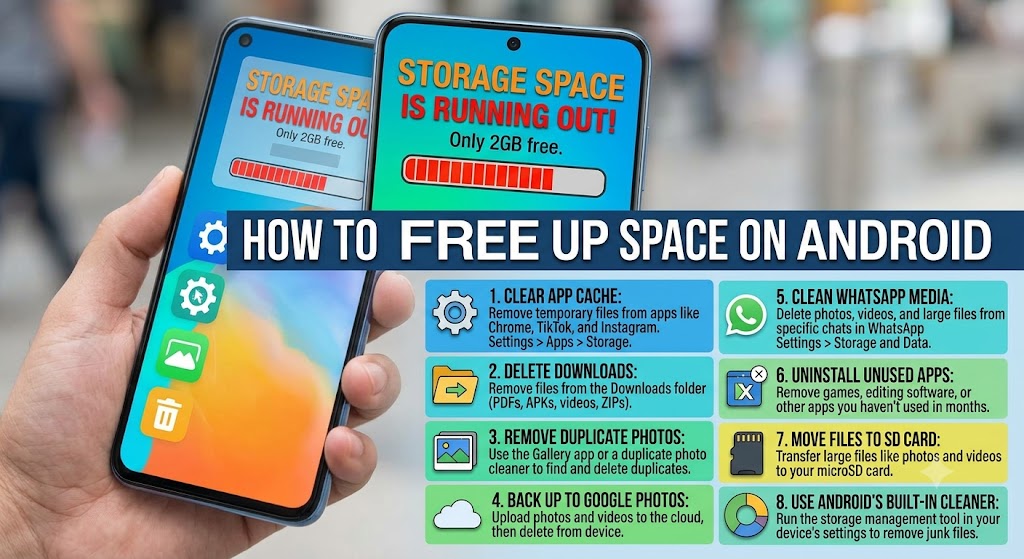
Running out of storage space on your Android phone can be frustrating, especially when you’re not ready to delete your precious photos and videos. Fortunately, there are several effective ways to free up storage without sacrificing your memories.
Whether you’re receiving the dreaded “Storage Almost Full” notification or your phone has started slowing down, this guide will show you how to reclaim valuable storage space while keeping your photos safe.
Why Android Storage Fills Up So Quickly
Many people assume photos are the biggest storage culprit, but that’s not always the case. Your Android phone stores much more than pictures, including app cache, downloaded files, temporary data, WhatsApp media, software updates, and duplicate files.
Over time, these files accumulate and consume gigabytes of storage without you even noticing.
The good news is that most of them can be safely removed.
1. Clear App Cache
One of the fastest ways to free up storage is by clearing cached data.
Apps like Facebook, TikTok, Instagram, Chrome, and YouTube store temporary files to load content faster. While useful, these files can eventually occupy several gigabytes.
To clear app cache:
- Open Settings
- Tap Storage or Apps
- Select the app
- Tap Storage
- Choose Clear Cache
Avoid tapping Clear Data unless you understand it may reset the app’s settings or log you out.
2. Delete Downloaded Files You No Longer Need
Many Android users forget about their Downloads folder.
PDF documents, APK files, videos, ZIP files, voice recordings, and images downloaded from browsers often remain there for months.
To check:
- Open the Files app
- Tap Downloads
- Delete files you no longer need
You may be surprised by how much storage this frees up.
3. Remove Duplicate Photos
Even if you don’t want to delete your photos, chances are you have duplicates.
Screenshots, edited copies, burst photos, and downloaded images can quickly fill your gallery.
Many Android phones now include duplicate detection inside the Gallery app. You can also use trusted duplicate photo cleaner apps to safely remove repeated images.
4. Back Up Photos to Google Photos
Instead of deleting photos forever, upload them to Google Photos.
Once your pictures are safely backed up, you can remove the local copies from your phone while still accessing them whenever you have an internet connection.
To do this:
- Open Google Photos
- Enable Backup
- Wait until the upload is complete
- Use the Free up space option
Always confirm your photos have finished backing up before deleting local copies.
5. Delete Large Videos Instead
Videos consume much more storage than photos.
A single 4K video can use hundreds of megabytes or even several gigabytes.
Open your gallery and sort videos by size. Remove clips you no longer need or upload them to cloud storage before deleting them from your device.
6. Clean WhatsApp Storage
WhatsApp is one of the biggest storage consumers on Android phones.
Photos, videos, voice notes, documents, and forwarded media accumulate every day.
To clean WhatsApp storage:
- Open WhatsApp
- Tap Settings
- Select Storage and Data
- Tap Manage Storage
Here you’ll see which chats occupy the most space and can remove unwanted files without deleting important conversations.
7. Uninstall Apps You Rarely Use
Many people install apps “just in case” but never open them again.
Games, shopping apps, editing software, and old utilities can consume hundreds of megabytes each.
Go through your installed apps and uninstall anything you haven’t used in several months.
You can always reinstall them later if needed.
8. Delete Offline Movies and Music
Streaming services like Netflix, Spotify, YouTube Premium, and Amazon Prime Video allow offline downloads.
These files remain on your device until manually removed.
Open each app and delete downloaded content you’ve already watched or listened to.
9. Move Files to an SD Card
If your Android phone supports expandable storage, moving large files to a microSD card is an excellent option.
Photos, videos, documents, and music can all be transferred while remaining easily accessible.
This keeps your internal storage free for apps and system updates.
10. Use Android’s Built-In Storage Cleaner
Most Android phones now include a built-in storage management feature.
Depending on your manufacturer, it may recommend deleting:
- Junk files
- Temporary files
- Duplicate images
- Large unused files
- Old screenshots
Review the suggestions before confirming deletion.
Common Mistakes to Avoid
When trying to free up storage, many users accidentally remove important information.
Avoid these mistakes:
- Deleting photos before confirming cloud backup.
- Clearing app data instead of cache.
- Removing important documents from the Downloads folder.
- Deleting WhatsApp backups without checking their contents.
- Installing untrusted “phone cleaner” apps that promise unrealistic results.
How Much Free Storage Should You Keep?
Experts generally recommend keeping at least 10% to 20% of your phone’s storage free.
For example:
- 64GB phone → Keep at least 6GB to 12GB free.
- 128GB phone → Keep at least 13GB to 25GB free.
- 256GB phone → Keep at least 25GB to 50GB free.
Maintaining free storage helps Android perform better and reduces lag.
Final Thoughts
Running out of storage doesn’t mean you have to sacrifice your treasured photos.
By clearing app cache, removing unnecessary downloads, cleaning WhatsApp media, deleting duplicate files, backing up your photos, and uninstalling unused apps, you can recover significant storage space while keeping your memories intact.
Making storage maintenance part of your routine every few weeks will help your Android phone remain fast, responsive, and ready for new apps, photos, and videos.