With more than 2 billion users worldwide, WhatsApp has become one of the most popular messaging apps for personal conversations, business communication, and group discussions. Whether you’re chatting with friends, sharing family photos, or managing customers through WhatsApp Business, protecting your privacy has never been more important.
To help users stay in control of their personal information, WhatsApp offers a wide range of privacy settings. These settings allow you to decide who can see your profile photo, last seen, online status, status updates, phone number, groups, live location, and much more.
With the introduction of WhatsApp usernames, privacy has become an even bigger focus. Instead of sharing your phone number with everyone, users can soon connect through unique usernames, giving people another way to communicate while revealing less personal information.
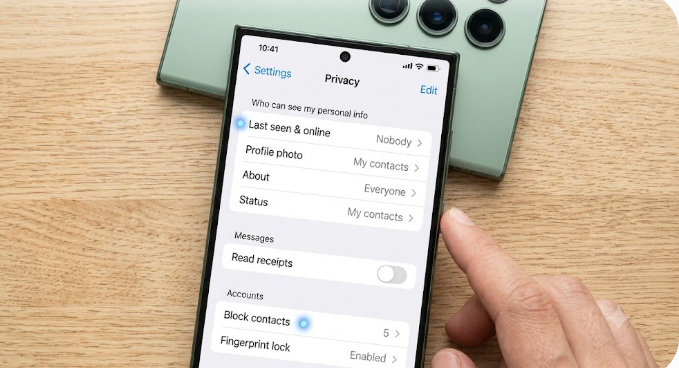
If you’ve ever wondered how to make your WhatsApp account more private, this complete guide explains every important privacy setting and how to use it.
Why WhatsApp Privacy Settings Matter
Every day, millions of people share personal conversations on WhatsApp.
These conversations often include:
- Family photos
- Financial information
- Business discussions
- Personal documents
- Videos
- Voice notes
- Live locations
Without proper privacy settings, more people may be able to see information about your account than you intend.
Fortunately, WhatsApp gives you control over what others can see.
How to Access WhatsApp Privacy Settings
Finding your privacy settings is simple.
On Android
- Open WhatsApp.
- Tap the three-dot menu in the top-right corner.
- Tap Settings.
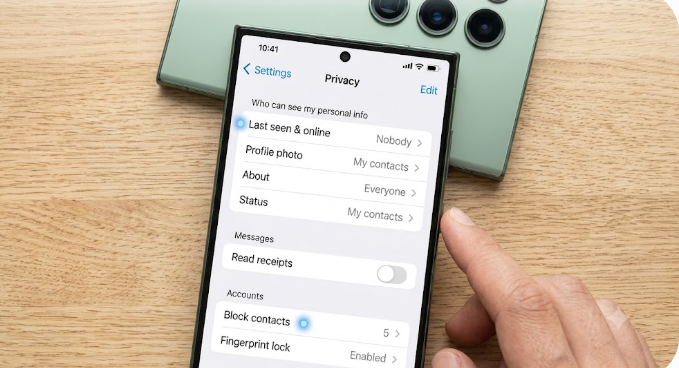
- Select Privacy.
On iPhone
- Open WhatsApp.
- Tap Settings at the bottom of the screen.
- Tap Privacy.
From there, you’ll see several options that let you customize your account.
Last Seen and Online
One of the most popular privacy settings is Last Seen and Online.
What is “Last Seen”?
Last Seen tells other people the last time you used WhatsApp.
For example:
Last seen today at 9:45 PM
Some people prefer not to share this information.
What is “Online”?
When you’re actively using WhatsApp, your account may display Online.
You can decide who can see this information.
Available Options
WhatsApp typically allows you to choose from:
- Everyone
- My Contacts
- My Contacts Except…
- Nobody
You can also control who sees when you’re online.
Recommended Setting
For better privacy, many users choose:
Last Seen: My Contacts
Online: Same as Last Seen
Profile Photo Privacy
Your profile photo often contains personal information.
Maybe it’s:
- Your face
- Your children
- Your family
- Your workplace
Not everyone needs to see it.
You can choose who can view your profile picture.
Options include:
- Everyone
- My Contacts
- My Contacts Except…
- Nobody
If you regularly receive messages from strangers, limiting your profile photo to your contacts is usually a good idea.
About Information
The About section is the short message displayed on your profile.
Examples include:
- Busy
- Available
- At work
- Sleeping
- Hey there! I am using WhatsApp.
You can decide who sees this information.
Status Privacy
WhatsApp Status works similarly to Instagram Stories.
Photos and videos disappear after 24 hours.
You can choose who sees your updates.
Options include:
- My Contacts
- My Contacts Except…
- Only Share With…
This gives you complete control over your audience.
Read Receipts
Read Receipts are the famous blue ticks.
When enabled:
✔ Others know you’ve read their message.
✔ You know when others have read yours.
When disabled:
- People won’t know you’ve read their messages.
- You also won’t know when they’ve read yours.
The only exception is group chats, where read receipts still apply.
Default Message Timer
WhatsApp allows disappearing messages.
You can choose:
- 24 Hours
- 7 Days
- 90 Days
After the selected period, new messages disappear automatically.
This is useful if you don’t want conversations to remain permanently.
Groups Privacy
Have you ever been added to random WhatsApp groups?
The Groups setting helps prevent this.
You can choose:
- Everyone
- My Contacts
- My Contacts Except…
Many people select My Contacts to avoid spam invitations.
Live Location
WhatsApp allows you to share your live location.
This can be useful for:
- Meeting friends
- Family safety
- Travel
- Emergencies
However, only share your live location with people you trust.
You can stop sharing at any time.
Blocked Contacts
If someone bothers you, you can block them.
Blocked users cannot:
- Message you
- Call you
- See certain profile updates
Blocking is one of the most effective ways to protect yourself from spam or harassment.
Fingerprint Lock (Android)
Android users can lock WhatsApp using:
- Fingerprint
- Face Unlock (supported devices)
Even if someone unlocks your phone, they’ll still need biometric authentication to access WhatsApp.
Face ID Lock (iPhone)
iPhone users can secure WhatsApp using:
- Face ID
- Touch ID (supported devices)
This adds another layer of protection.
Two-Step Verification
This is one of WhatsApp’s most important security features.
When enabled, you’ll create a six-digit PIN.
If someone tries to register your phone number on another device, they’ll also need this PIN.
Without it, taking over your account becomes much harder.
To enable it:
Settings → Account → Two-Step Verification.
Highly recommended.
Encrypted Backups
WhatsApp chats are protected with end-to-end encryption while they’re being sent.
However, cloud backups may require additional protection.
Encrypted backups ensure your stored conversations remain secure.
If you enable encrypted backups, remember your password or encryption key. Losing it may prevent you from restoring your backup.
Chat Lock
One of WhatsApp’s newest privacy features is Chat Lock.
You can lock individual chats behind:
- Fingerprint
- Face ID
- Passcode
Locked conversations are moved into a separate protected folder.
This is especially useful if you share your phone with family members or colleagues.
Silence Unknown Callers
Spam calls are becoming more common.
WhatsApp now lets you silence calls from unknown numbers.
These calls won’t ring, but they’ll still appear in your call history if you want to review them later.
This feature reduces interruptions and helps protect against scam callers.
Advanced Chat Privacy
WhatsApp continues introducing new privacy improvements designed to give users greater control over their conversations. Depending on your app version, you may see additional options that restrict how chats are shared or exported.
Keeping your app updated ensures you receive the latest privacy features as they become available.
WhatsApp Usernames and Privacy
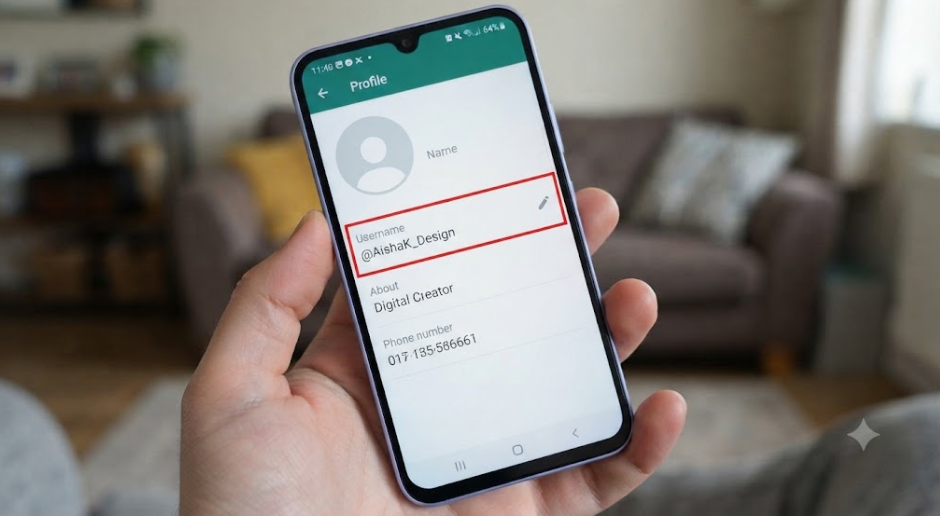
One of WhatsApp’s biggest privacy improvements is the introduction of usernames.
Instead of giving strangers your mobile number, you’ll be able to share:
@yourusername
This is especially useful for:
- Businesses
- Freelancers
- Online sellers
- Content creators
- Community leaders
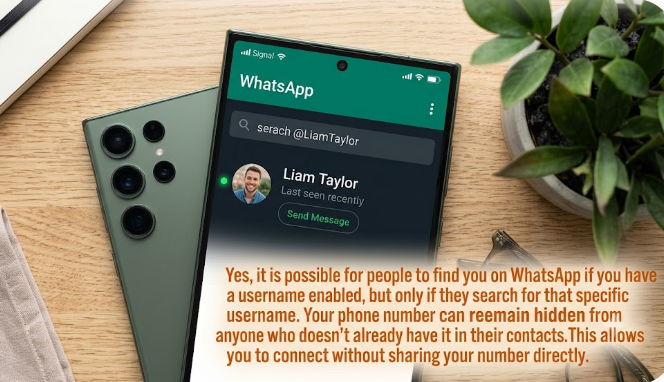
Your phone number remains required to register your account, but usernames reduce the need to share it publicly.
Tips to Keep Your WhatsApp Account Safe
Privacy settings are most effective when combined with good security habits.
Follow these tips:
- Enable Two-Step Verification.
- Keep WhatsApp updated.
- Never share your verification code.
- Don’t click suspicious links.
- Block unknown scammers.
- Use Chat Lock for sensitive conversations.
- Turn on biometric authentication.
- Review your privacy settings every few months.
- Only share your live location with trusted people.
- Avoid posting personal information in your profile.
Common Privacy Mistakes
Many users accidentally expose more information than they realize.
Common mistakes include:
- Leaving profile photos visible to everyone.
- Sharing live locations for too long.
- Joining unknown groups.
- Using weak screen locks.
- Ignoring app updates.
- Not enabling Two-Step Verification.
Avoiding these mistakes can significantly improve your privacy.
Frequently Asked Questions
Can I hide my online status?
Yes. WhatsApp allows you to control who can see when you’re online by adjusting your Last Seen and Online settings.
Can strangers see my profile photo?
Only if your privacy settings allow it. You can limit visibility to your contacts or hide it completely.
Are WhatsApp messages encrypted?
Yes. Personal chats and calls are protected by end-to-end encryption, meaning only you and the person you’re communicating with can read or listen to them.
Can someone add me to a WhatsApp group without permission?
You can reduce unwanted group invitations by changing your Groups privacy setting to “My Contacts” or “My Contacts Except…”.
Is Two-Step Verification worth enabling?
Absolutely. It’s one of the best ways to protect your account from unauthorized access.
Do WhatsApp usernames improve privacy?
Yes. Usernames reduce the need to share your personal phone number when connecting with new people, making it easier to communicate while keeping your number more private.
Final Thoughts
WhatsApp offers far more privacy controls than many users realize. From managing who can see your profile photo and online status to enabling Chat Lock, Two-Step Verification, encrypted backups, and usernames, you have plenty of tools to protect your personal information.
The best approach is to review your privacy settings regularly and adjust them to match how you use WhatsApp. If you mostly chat with family and friends, limiting visibility to your contacts may be enough. If you run a business or communicate with many new people, features like usernames and group privacy controls become even more valuable.
By taking a few minutes to configure these settings, you can enjoy a safer, more private WhatsApp experience while staying connected with the people who matter most.
Related Articles
- How to Create a WhatsApp Username
- WhatsApp Username vs Phone Number: What’s the Difference?
- Can Someone Find You by WhatsApp Username?
- How to Hide Your Phone Number on WhatsApp
- Best WhatsApp Username Ideas for 2026
- Why Can’t I Create a WhatsApp Username?